
20 Things I Love about iOS 7
Posted by Rochelle Sy Chua On June 14, 2013
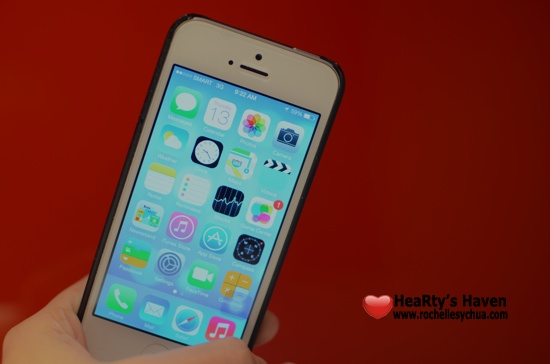
I’ve been dying to experience iOS 7 ever since it was announced early this week. Apple completely did an overhaul and made a lot of improvements to iOS 6. As expected, iOS 7 will only be available for developers as of now and will be released to the public this fall (around September timing).
Considering how I adore Apple, I couldn’t take it any longer that I got myself a developer account. I downloaded the beta version of iOS and started checking out the features of the upcoming iOS.
Here are 20 things that I love about iOS 7:
I know there are hundreds of features which I still have yet to try out. However, for now, these are the things that I immediately noticed upon exploring my iPhone 5 with iOS 7. One word to describe the experience: WOW! 🙂
- New Design
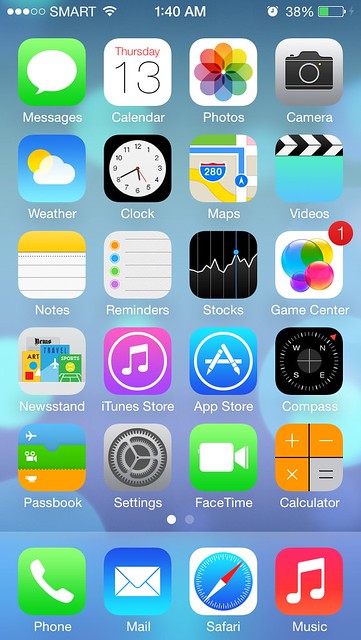
With Jonathan Ive on board, I knew that the design of iOS will change drastically… for the better! I knew that finally the design will complement both the operating system and hardware. Everything was changed: the icons, the home screen, the screen space, the dock and even the signal bar (from bars to dots).
Skeumorphism is definitely out and flatness is in. Skeumorphism is where things resembles an actual product. If you loved the yellow notepad and leather bound calendar, you won’t see it in iOS7 anymore. I do not miss them one bit because I love the cleanliness and the simplicity of the new icons! There’s not much noise anymore.
The new look makes the iPhone look more elegant. Just the way it’s supposed to be 🙂
- iMessage
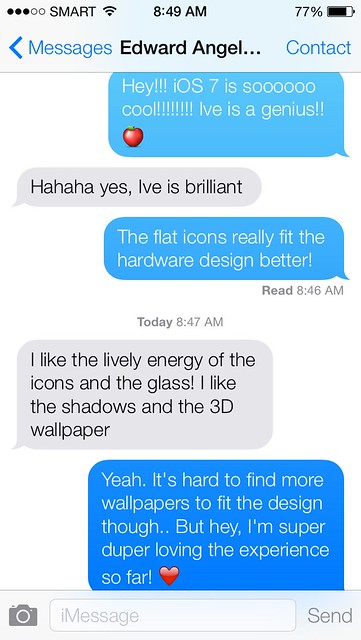
The Messages app also had a makeover and boy, I do love it to bits! Just like the home screen, this is definitely a lot cleaner! Jonathan Ive removed clutter in the app. I immediately noticed this. The profile image of the individual isn’t visible anymore inside the message window.
- Lockscreen
I tend to choose the shortest time possible to auto-lock my iPhone. The reason is that I want to save battery. Sometimes, I find it irritating if I only want to open the flashlight app or to take a quick picture because I have to click several tabs before I can access them.
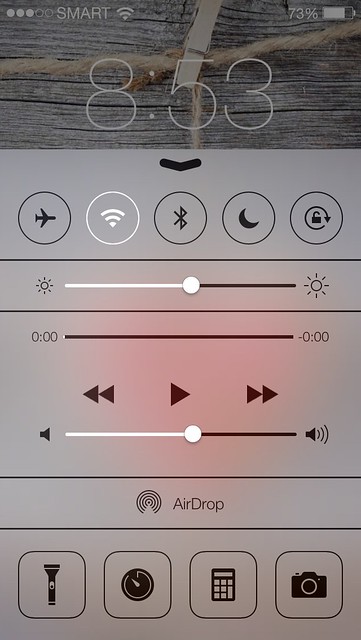
Luckily, with iOS7, we now have the ability to access control center from the lock screen. Net, it’s easier to access flashlight, clock app, music, airdrop, calculator, brightness option and several other features! Sooooooo awesome!
- Game Center

No more green felt in the Game Center because it’s now a sleek white screen with colorful bubbles! It’s interactive too!
- Camera App
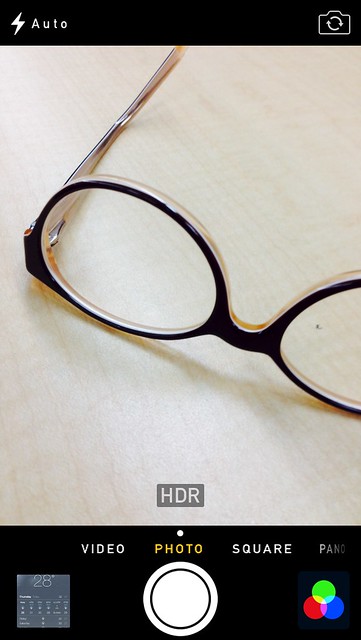
The Camera application was redesigned completely. It’s now easier to access the different modes: Video, Photo, Square (new) & Panorama by a swipe of a finger. The Square mode is there for people who prefers square pictures over portrait.
- Filters
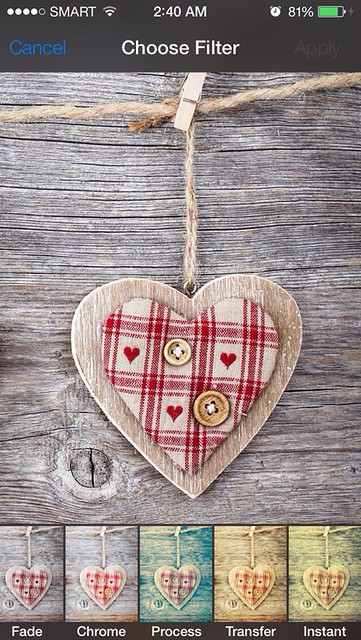
It’s time to say goodbye to some filtering applications because iOS 7 now has built-in camera filters! There are eight filters to choose from, just enough for us to have cutesy creative photos.
- Photo Gallery

One improvement area of iOS6 is the way photos are organized. If I have thousands of pictures on my iPhone, I need to scroll through a very very long page in order to view them. With iOS 7, our photos are now organized into a timeline – years, months, weeks, and days. No need to manually arrange our photos!
- Siri

It’s easier to tell if Siri is listening as audio waves are now shown when Siri is listening and analyzing what we are saying.
In iOS7, Siri works with Bing (no surprise there as Google is clearly a competitor)! Apart from that, Siri also gets information from Twitter and Wikipedia to answer our queries.
- Apps Near Me
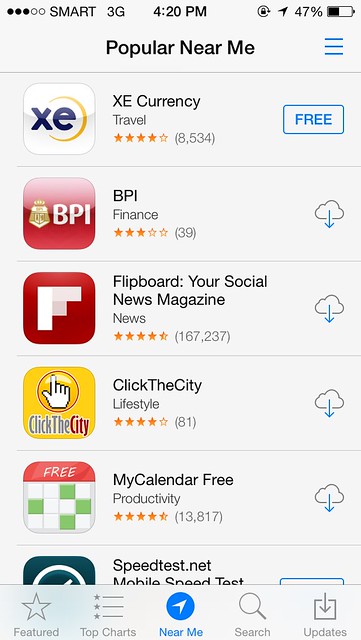
In app store, we can find applications that are popular near our current location. So when we travel, this little feature would help guide us on what to download right at that moment. In my case, when I did a search earlier, I discovered the XE currency app which is totally new to me! Very useful!
- Weather
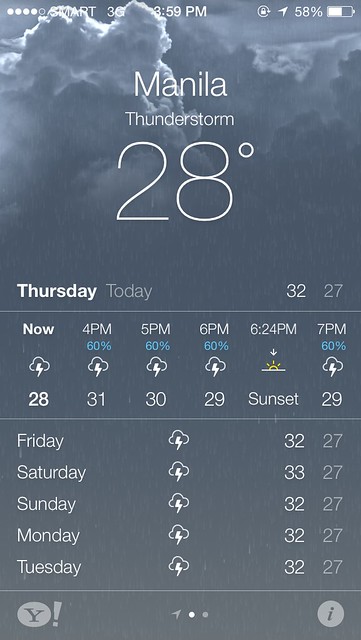
Animation just made the Weather app ten times cooler! I was driving earlier going to work and I was impressed with how the sky and the weather app looked the same! It was like a carbon copy of sorts and that made me want to use the application more because of this new change!
- Notification Center
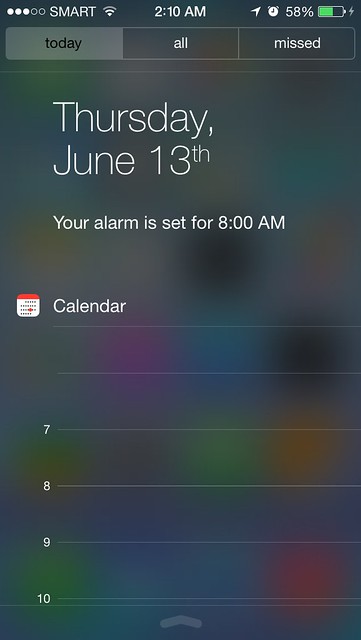
The notification center have been redesigned in a way that it now has 3 tabs (today, all & missed).
Today tab – gives us a rundown of our events & stock prices for the day.
All tab – a combination of everything (messages, twitter, facebook, emails, etc) that are activated in your notification settings.
Missed tab – where we can find a list of our missed calls.
- Multi-tasking
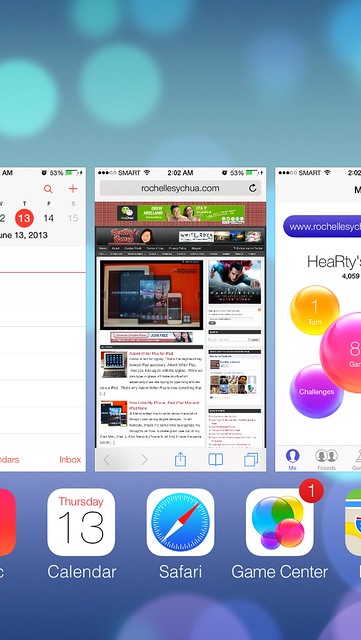
Vast improvement on multi-tasking.
I believe that this time Apple fixed this feature right. Finally, when we double tap the home button, we can now see a preview of all our running applications. It’s easy to browse through them now and we can quickly close an application by swiping it up. The best improvement on this is that we don’t have to wait for the applications to be updated when we switch to them as iOS automatically updates them on the background. Super cool, isn’t it?
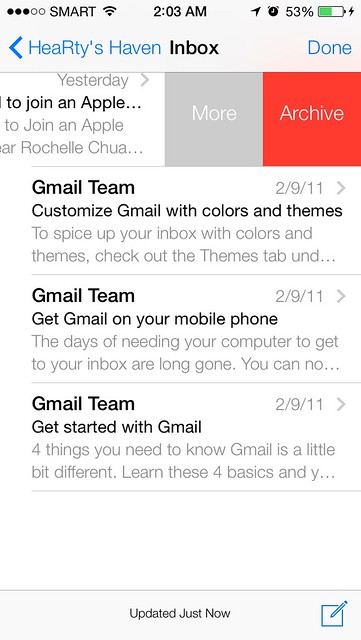
iOS 7 is definitely about simplicity and elegance. We can see that clearly through the new email application. It’s as simple as swiping to the right to access mailboxes and folders then swiping to the left to archive an email. Simple but it works!
- iTunes Radio
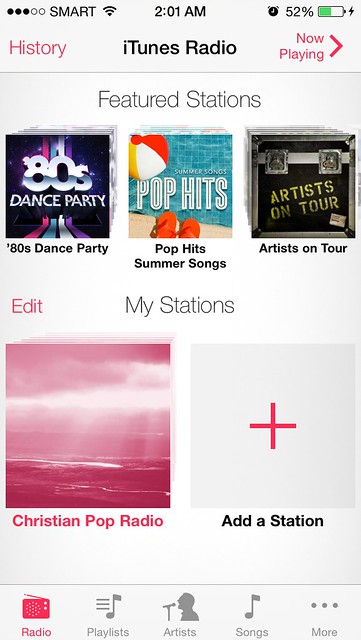
We can now listen to music for free with iTunes Radio! All we have to do is open the music app, click Radio and choose the stations we like. We can them stream the music from the internet! If we like the track we’re listening to, we can buy it right there and there!
- Full Screen Safari
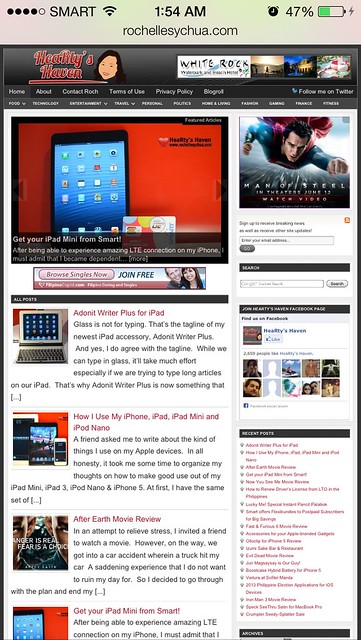
Another welcome improvement to iOS is the full screen Safari. The elements will be automatically hidden/minimized until we need them. With that, we can maximize the use of the beautiful retina display of iPhone 5. Very well thought of Apple!
- Safari Tabbed Browsing

Tabbed browsing is a great improvement to the overall look of Safari. It’s easier to browse from page to page with this format. Five tabs can be shown on iPhone screen at once glance.
- Shared Links
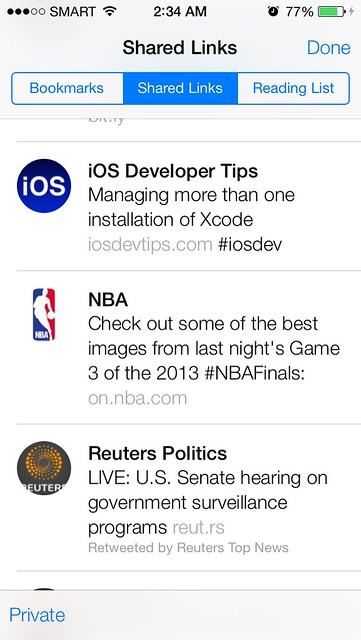
Another Safari on iOS 7 feature that I love is the addition of shared links from Twitter. I follow a lot of technology, NBA, and news journalists on Twitter thus I read a lot of articles from there. I’m glad it’s now way easier to access those shared links.
- AirDrop
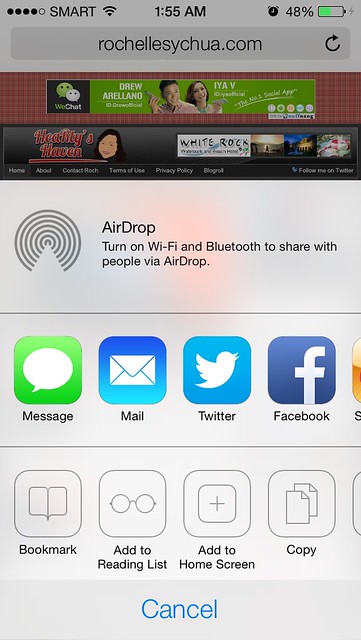
I was laughing when the Apple keynote speaker said that we don’t have to run around bumping phones anymore. He was talking about AirDrop and I must say, FINALLY!
I wasn’t able to test this as I do not know anyone with iOS7. AirDrop uses Wi-Fi and Bluetooth to share files (photos, contacts, videos) with anyone who is nearby. With AirDrop, transferring data is now much easier!
- Search Anywhere
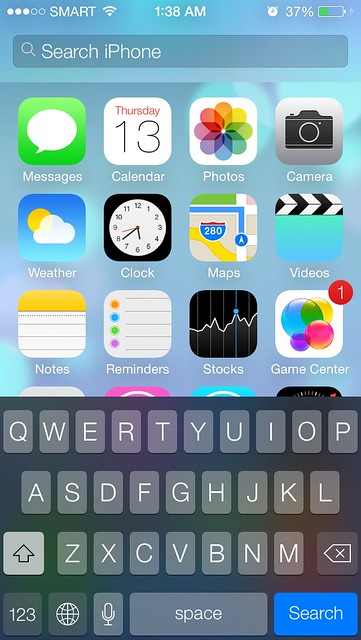
In the past, whenever we need to search something on our iPhone, we have to press the home button then swipe to the right. Considering that I use this feature a lot, I would wish that I can do this in a faster way.
My wish has been answered because iOS 7 has brought a new way to access spotlight search! We just need to swipe down from anywhere on the screen to bring up spotlight search! One watchout is that we can’t do this at the absolute top because it is where the notification center is.
- Control Center
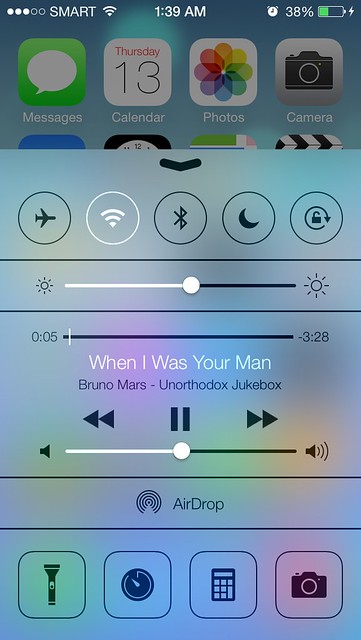
The control center has got to be my favorite among all the new features of iOS7. It’s extremely useful! The control center gives us control over airplane mode, wifi, bluetooth, DND mode, lock screen, screen brightness, systems volume, music playback controls, airdrop, flashlight, clock, calculator and camera! Whew, that’s a lot!
All those features used to be inside the settings app or a separate application thus we have to enter the home screen and click a few times on the screen in order to access them. But now, we can access all those features simply by swiping up on the screen!
This is probably something that would stop people from jailbreaking their iPhone. Most of the features that they gravely find on iOS are now coming with iOS7!
The iOS 7 that I have on my iPhone 5 is still beta 1 version so I expect a lot of bugs. I can’t wait for September so that everyone can experience the brilliantness of the revamped mobile operating system of Apple. Great Job Ive and team!

Adonit Writer Plus for iPad
Posted by Rochelle Sy Chua On June 12, 2013
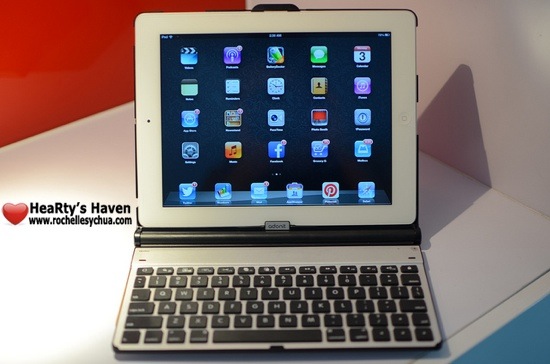
Glass is not for typing.
That’s the tagline of my newest iPad accessory, Adonit Writer Plus. And yes, I do agree with the tagline. While we can type in glass, it’ll take much effort especially if we are trying to type long articles on our iPad. That’s why Adonit Writer Plus is now something that I bring everyday.
The Writer Plus consists of a Folio case and a Bluetooth Keyboard. In fact, I blogged about this review on my iPad. With Writer plus, I can now make more use of my iPad!
WHAT IS IN THE BOX OF THE WRITER?
Oh yes, the beauty of opening the box and the eagerness to take out each component. The excitement to be able to assemble everything and use the accessory ASAP. I just love it!
So here are what’s inside: the Writer (Folio + Bluetooth keyboard), Instruction Manual & USB Charging cable.
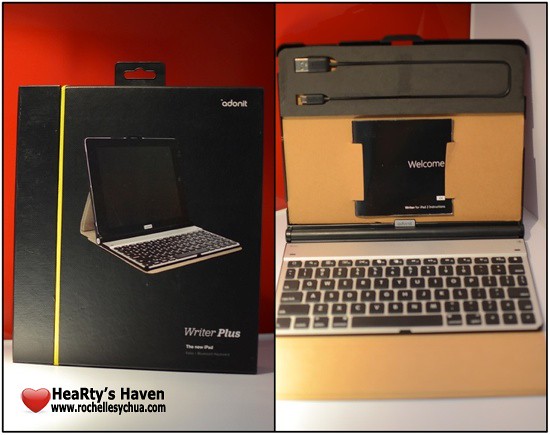
ANATOMY of the Adonit Writer Plus a.k.a. Writer
The next thing I did was to inspect the Writer. There are 2 main functions: to protect the iPad through the Folio and to be able to type on a keyboard through the bluetooth keyboard.
When I checked it out, I realised that while the Writer looked simple, each and every little part has a function that made the whole accessory useful.
FOLIO
- cover – I think there could be a better way to design the outer covering of the writer but it works just fine.
- protective fabric – inner surface of the writer which means that the iPad is protected inside and out 🙂
- magnetic closure – the Writer uses the same type of closing mechanism as Apple’s smart cover, a magnetic one!
- frame – this is where the iPad sits. It basically holds the iPad together with the Writer.
- frame cutouts – parts of the frame which have been cut out to give access to the iPad ports and buttons.
- magnetic plate – I love how the magnet inside the writer can hold the keyboard and iPad to the position that we want them to.
KEYBOARD
- keyboard – the keyboard and basically why I wanted this accessory in the first place. And oh, it’s detachable from the Writer!
- indicator LED – the LED at the top right corner of the keyboard which shows if it’s ready for bluetooth pairing. It’s also a power indicator, reminding us if we need to recharge the accessory.
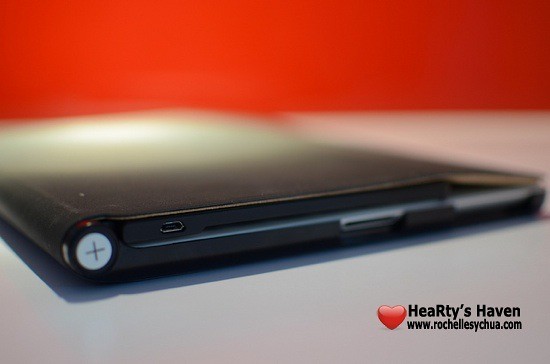
- micro-usb port – located at the top right side of the keyboard, used for charging.
- pairing button – button at the top right corner of the keyboard which we press to activate the pairing of the keyboard and iPad.
- on/off switch – located at the back of the keyboard. It takes a bit of effort to turn it on using my finger so I ended up just leaving it on. the battery life works great anyway.
- rubber bumpers – I do not remove the keyboard from the Writer when I put the iPad on my bag. That’s why I’m just glad that rubber bumpers on the keyboard protects my iPad screen from any damages. Super love this part!

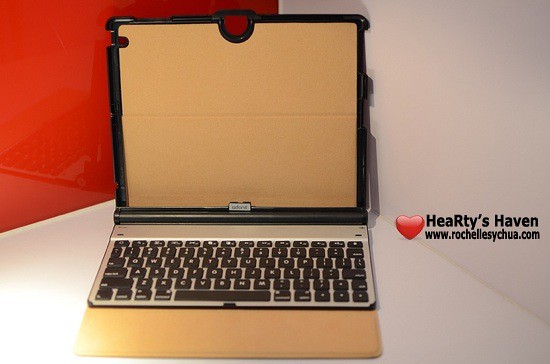

INSTALLING THE WRITER
The trick to properly place the iPad to the writer is by inserting the iPad while the accessory is playing flat on a surface. Next is to ensure that the iPad is aligned with the frame cutouts.

CONNECTING THE WRITER
Connect the Writer to the iPad by turning on Bluetooth on your device.
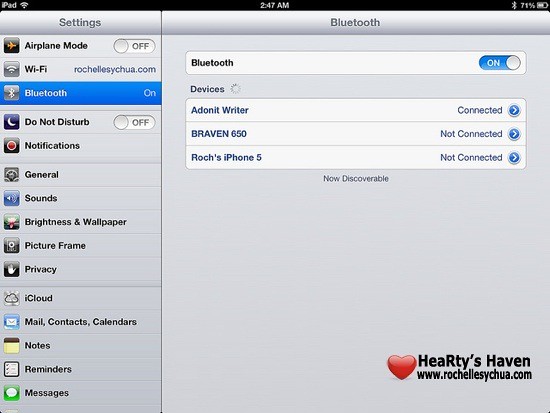
Once activated on the iPad, you just have to press and hold the pairing button on top right of the keyboard for several seconds. The indicator LED will show a green blinking light and you’re ready to go.
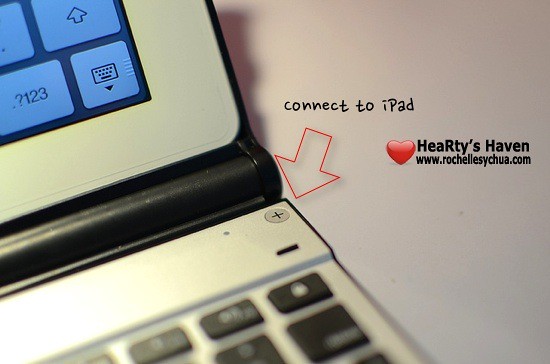
CHARGING THE WRITER
Once the LED indicator light shows red color, it’s time to recharge the accessory. You just need to connect the included micro-USB cable into the micro-USB port at the top right side of the Writer.
The battery lasts for 2 weeks with normal use.

USING THE WRITER
Now, here’s the enjoyable part whenever I get an accessory – to be able to experience its functionalities and features. I’m really glad that I found this case because I ended up being more productive because I can type on a keyboard! 🙂
Here are some of the features of Adonit Writer Plus for the iPad:
- Both the keyboard (from a simple pull) and the iPad (through the quick eject) are easy to remove from the Writer.
- The Magnetic Seal enables the iPad to go to sleep whenever the folio latches on to it.
- The auto wake & sleep function works not only for the iPad but also for the Writer’s keyboard. This explains why the keyboard works for a long time without charging.
- The keyboard wirelessly connect to the iPad via bluetooth.
- You can put your iPad in any angle because of the magnetic plate that securely places it wherever you want.
- The protective fabric inside the writer serves as a cushion between the iPad and keyboard. Other than that, it’s scratch resistant!
- Adonit Writer Plus doubles as a case just in case you don’t need a keyboard.
- keyboard – apart from being able to type numbers and letters through the writer, you can also do certain things via special keys at the top part of the keyboard. Things like going to the Home screen, search window, image gallery, bringing up virtual keyboard, cut/copy/paste functions, control music and sounds and locking the iPad screen.
Apart from all those nifty features, what I ended up with is that I started writing more using my iPad. I blog more and I use Pages, Numbers and Keynote iOS apps more often. I tend to start writing my thoughts on my iPad and I’m already contemplating on starting a diary. In the end, Adonit Writer Plus boosted my productivity.


IN SUMMARY
I super love the Adonit Writer Plus! It makes writing easier! With the accessory, I can actually transform my iPad into a full-pledged laptop. Some of my friends even thought that I was using a compact laptop 😛
PROS:
- functional detachable keyboard
- slim & portable
- rechargeable batteries
- can double as a case
CONS:
- folio design could be better
- on/off switch is difficult to use
The Adonit Writer Plus for iPad is available for Php 4,990.00 in the Philippines.
How I Use My iPhone, iPad, iPad Mini and iPod Nano
Posted by Rochelle Sy Chua On June 9, 2013
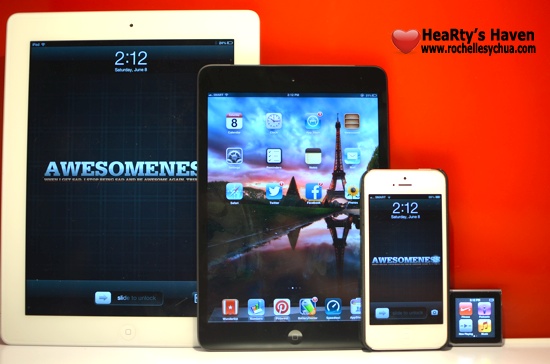
A friend asked me to write about the kind of things I use on my Apple devices. In all honesty, it took me some time to organize my thoughts on how to make good use out of my iPad Mini, iPad 3, iPod Nano & iPhone 5.
At first, I have the same set of applications on those devices. But then, I realized I should be reassessing the way I use them and be more efficient.
I asked myself these questions, “Why did I purchase the device?”, “What for?”, and “What compelled me to want the gadget?”.
Let me guide you through my thought process when deciding to pin down the main use of each gadget.
Specifications & Unique Features
FIRST, I panned out and compared the specifications and unique features of the Apple-branded gadgets. I put them side by side and tried to analyse them.
| Specifications | iPhone | iPad | iPad Mini | iPod Nano |
| storage capacity | 32GB | 32GB | 16GB | 16GB |
| generation | 5th gen | 3rd gen | 1st gen | 6th gen |
| display resolution | 1136 x 640 | 2048 x 1536 | 1024 x 768 | 240 x 240 |
| dimensions | 4.87 x 2.31 x 0.30 | 9.50 x 7.31 x 0.37 | 7.87 x 5.3 x 0.28 | 1.48 x 1.61 x 0.35 |
| weight | 112 grams | 652 grams | 312 grams | 0.74 ounces |
| camera | 8 Megapixels | 5 Megapixels | 5 Megapixels | N/A |
| unique features |
|
|
|
|
Uses and Purpose
SECOND, I listed down all the things that I do when using either the iPhone, iPad, iPad Mini or iPod Nano.
- Reading books, comics & magazines
- watching videos (movies, YouTube, TV shows & podcasts)
- listening to music & audio podcasts
- playing games
- browsing the net
- blogging
- social networking
- productivity (expense tracking, managing documents, etc)
- text messaging & phone calls
- FaceTime with friends
- check e-mails
- take notes
- drawing
- study online courses
- managing to-do lists
Roch’s Personal Apple Gadget Usability Chart
LASTLY, after much thought, I decided to map each purpose to the gadgets and here is what I came up:
| iPhone | iPad | iPad Mini | iPod Nano |
|
|
|
|
So there, I use each Apple device everyday. Though, it will make sense to use the same applications on all the devices (since they use the same operating system) and use them to back up each other, I will stick to my plan. It works for me and I believe I made good use of the features.
How about you? Do you have multiple devices? How do you use them?
After Earth Movie Review
Posted by Rochelle Sy Chua On June 8, 2013

In an attempt to relieve stress, I invited a friend to watch a movie. However, on the way, we got into a car accident wherein a truck hit my car 🙁 A saddening experience that I do not want to ruin my day for. So I decided to go through with the plan and end my day watching Will Smith & his son, Jaden Smith on After Earth.
After Earth is the second movie that starred the Smiths. I wasn’t able to catch Pursuit of Happyness but glad that I didn’t miss to watch After Earth. I always have a soft spot for father & son/father & daughter movies. This film definitely fit that genre.
The story came a thousand years after a tragedy made humans escape from the planet Earth. Nova Prime has become a new home for humans but it’s not completely safe. An organization called the Ranger Corps are trained to keep humans on Nova Prime safe from the S’krell, a group of aliens that kills humans.
Kitai (Jaden Smith) is a 13-year old son of Ranger Corps General Cypher Raige (Will Smith) who continues to try to prove to his dad that he can be a ranger like him. In an effort to build a relationship with his son, Cypher tagged Kitai on his last mission before retirement. However, an asteroid damages their spaceship and they eventually crash-land on earth. The unfortunate accident kills everyone except Cypher and Kitao Raige. With Cypher critically injured, Kitai must explore across the dangerous planet to recover their rescue beacon and save his dying father.
“Fear is not real. It is a product of the thoughts you create. Do not misunderstand me, danger is very real. But fear is a choice.”
If there is something to take away from After Earth, that is to remember that we can choose not to be afraid. It’s a state of mind and I must say, I’m guilty of such. We just have to believe & have faith and we’ll eventually gather enough strength to overcome our fears 🙂
After Earth is a very simple film. Actually there were no twists to the story. It was straightforward but I love how it was panned out.
Effects are not something I would rave for but it was pretty decent. I liked the chase with the gorillas and the high tech features of the spaceships. Other than that, the CGI effects are just alright.
The film is definitely family-oriented. There were some tender moments wherein I shed some tears. True love for family specifically father & son relationship was the main theme here. Will Smith was brilliant! In spite of his role, you will be able to feel his love for his child. It was heartwarming!
It was also nice to see how Will Smith took the backseat and let his son, Jaden, carry the whole film. It’s such an irony considering that Jaden’s character was trying to save Will’s character on After Earth while in real life, Will was just there to help launch Jaden’s career as a box office star following his lead.
My Rating for After Earth: 4 out of 5 stars
Get your iPad Mini from Smart!
Posted by Rochelle Sy Chua On June 6, 2013
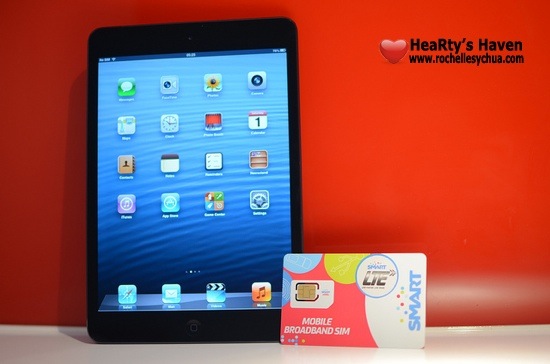
After being able to experience amazing LTE connection on my iPhone, I must admit that I became dependent on it. Imagine –> blazing fast speeds! I couldn’t get over how I can achieve almost 40MBPS! It was just unbelievable! Too bad, the free Smart LTE access will only last until June 30, 2013 for my iPhone 5.
But, Smart just released something better! They introduced two iPad plans that are affordable! The good news here is…. it includes Smart LTE connectivity (up to 42MBPS speeds FTW!) for 24 months! You read it right – 24 months or 2 years!
When news broke out 2 weeks ago, I checked out the plans and I must say that they are tempting. I love how the iPad plans were well-thought of.
The iPad Plan 499 and iPad Plan 999 are both available for iPad 4 and the iPad Mini. I chose the iPad Mini to test as I already bought the iPad 3 last year. I realized that the size of iPad Mini is perfect especially for people who are mobile. It’s 20% thinner and 50% lighter than the regular-sized iPad. Big difference if you ask me.
Five Reasons Why I Love the new Smart LTE iPad Mini

Let me countdown 5 reasons why it got my attention:
- LTE, LTE & LTE! – Smart has the widest LTE coverage in the country. I think I’m spoiled in a way that I cannot stand normal DSL speed anymore. With LTE, one can experience speeds of up to 42Mbps.
- Affordable Plans – Plan 499 for 65 hours of connectivity and Plan 999 for unlimited 3G/LTE connectivity.
- Big Discounts – You’ll get Php 8,000 discount on iPad Mini if you avail of the iPad Plan 999. Meanwhile, you can get the iPad Mini at 0% interest for 24 months if you avail of the iPad Plan 499.
- Anti-Bill Shock Protection – this one is my favorite benefit from Smart’s iPad plan. If you’re on iPad Plan 499 and you end up going over the plan limit, you’ll be pleasantly surprised. Even if you end up using Php 1,500 worth of data connection, Smart will only charge you a maximum of Php 999! This is perfect for people who are not heavy users of mobile data but can sometimes go over their plan limit occasionally.
- Freebies! – you’ll get a neopreene iPad sleeve, discount vouchers of up to 20% on accessories, 2 tickets to digital lifestyle sessons at Smart Jump Center and best priced insurance against theft & accidental loss & damage when you purchase your iPad and iPad plans from Smart.
The Smart LTE iPad Mini Plans

The #GetMini Mania Event
Lastly, if you’re convinced, you might wanna block off time on either June 8 or June 9, 2013. It’s because Smart is having a #GetMini Mania event this weekend at Shangri-La Mall.
The 2-day event will be about selling discounted iPad Plans! It’s an event you shouldn’t miss especially if you’re getting an iPad plan powered by Smart LTE. For Plan 499, you’ll get the iPad Mini at 0% interest for 24 months and for Plan 999? You’ll get the iPad Mini at Php 9,000 off! How cool is that?

Get more information at http://www.smart.com.ph/getmini.